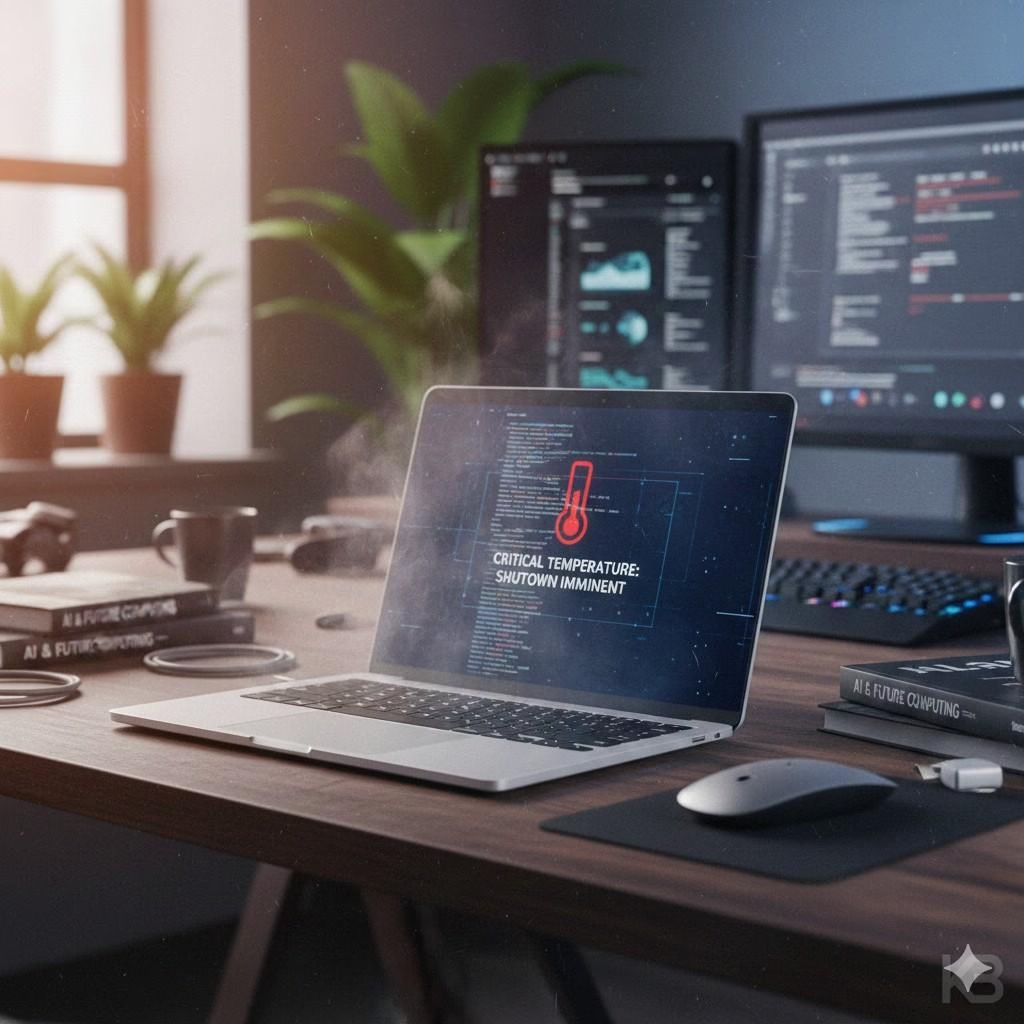

Introduction: I Learned These Laptop Lessons the Hard Way
I used to believe laptops were “smart enough” to take care of themselves. As long as they turned on and ran my daily tasks, I assumed everything was fine. That illusion shattered when my laptop started overheating, slowing down, and eventually required an expensive repair that could have been completely avoided.
After researching and correcting my mistakes—many highlighted in expert discussions like the MSN technology review—I realized most laptop failures are self-inflicted. These are not dramatic accidents but small, repeated bad habits that silently degrade performance, battery health, and internal components over time.
In this detailed review, I will walk you through 10 bad laptop habits that slowly damage your device, how I fixed them, and what you can do today to extend your laptop’s lifespan and save money.
1. Blocking Ventilation While Using the Laptop

Using a laptop on beds, sofas, or laps may feel comfortable, but it blocks airflow. I did this daily—until overheating throttled my CPU performance.
Why it’s harmful:
- Trapped heat damages internal components
- Fans work harder, reducing their lifespan
Fix:
Use a flat surface or a cooling pad.
2. Keeping the Laptop Plugged In 24/7

I assumed constant charging was harmless. In reality, it severely degraded my battery within a year.
Impact:
- Reduces battery charge cycles
- Causes swelling in lithium-ion batteries
Fix:
Maintain battery levels between 20%–80% and unplug when fully charged.
3. Ignoring Software and OS Updates
Skipping updates felt like saving time. Instead, it exposed my system to bugs and security vulnerabilities.
Why updates matter:
- Patch security flaws
- Improve performance and compatibility
Fix:
Enable automatic updates for OS and drivers.
4. Allowing Dust to Accumulate
Dust buildup was the silent killer of my laptop. I never cleaned it—until fan noise and overheating began.
Problems caused:
- Blocks airflow
- Increases internal temperatures
Fix:
Clean vents every 3–6 months using compressed air.
5. Eating and Drinking Near the Laptop
One accidental spill nearly destroyed my keyboard and motherboard.
Risks:
- Liquid damage
- Crumb accumulation under keys
Fix:
Maintain a separate eating space or use a keyboard cover.
6. Closing the Lid Without Proper Shutdown
I used to just close the lid repeatedly, assuming sleep mode was enough.
Why this is bad:
- Background processes continue
- Heat remains trapped
Fix:
Shut down at least once daily.
7. Using the Laptop on Soft Surfaces
Cushions and blankets restrict airflow more than most users realize.
Damage caused:
- Overheating
- Thermal throttling
Fix:
Use laptop stands or desks.
8. Overloading Storage to Maximum Capacity
My laptop slowed dramatically when storage crossed 90%.
Why it matters:
- SSDs need free space for caching
- Reduced read/write speeds
Fix:
Keep at least 20% free storage or upgrade SSD.
9. Carrying the Laptop Without Protection
Throwing a laptop into a backpack without padding caused internal connector damage in my case.
Fix:
Use a shockproof laptop sleeve.
10. Installing Unverified Software
Free tools and cracked software introduced malware that slowed my system and compromised data.
Fix:
Install software only from trusted sources and use antivirus protection.
Special Features That Help Prevent Laptop Damage
Modern laptops now include:
- Intelligent battery management
- Thermal throttling protection
- Smart fan controls
However, user behavior still matters more than hardware intelligence.
Practical Uses: Who Needs These Tips the Most?
These tips are essential for:
- Students using laptops daily
- Remote workers
- Freelancers and content creators
- Gamers and heavy users
Pros and Cons of Practicing Proper Laptop Habits
Pros
- Extended laptop lifespan
- Better performance
- Lower repair costs
- Improved battery health
Cons
- Requires discipline
- Minor accessory investment
Overall Review & Rating
User Experience Rating: ⭐⭐⭐⭐⭐ (4.7/5)
After correcting these habits, my laptop runs cooler, faster, and more reliably. Battery health stabilized, and performance improved noticeably within weeks.
Comparison Table: Laptop Care Then vs Now
| Feature | Older User Habits | Improved Practices | Similar Market Users |
|---|---|---|---|
| Battery Health | Rapid degradation | Optimized cycles | Mixed |
| Heat Control | Poor ventilation | Cooling accessories | Average |
| Performance | Slow over time | Consistent speed | Varies |
| Repair Cost | High | Minimal | Moderate |
FAQs
Q1: How often should I clean my laptop?
Every 3–6 months, depending on environment.
Q2: Is sleep mode bad for laptops?
Occasional use is fine, but daily shutdown is recommended.
Q3: Do cooling pads really work?
Yes, especially for heavy users and gamers.
Trusted Sources & References
- MSN Technology Desk
- Laptop manufacturer maintenance guides
- Battery University (Lithium-ion research)
Final Thoughts: Fix These Habits Before It’s Too Late
Laptop damage rarely happens overnight—it’s the result of daily neglect. Fixing these 10 habits helped me avoid replacing my laptop prematurely. With small adjustments and the right accessories, you can easily add years to your device’s life.