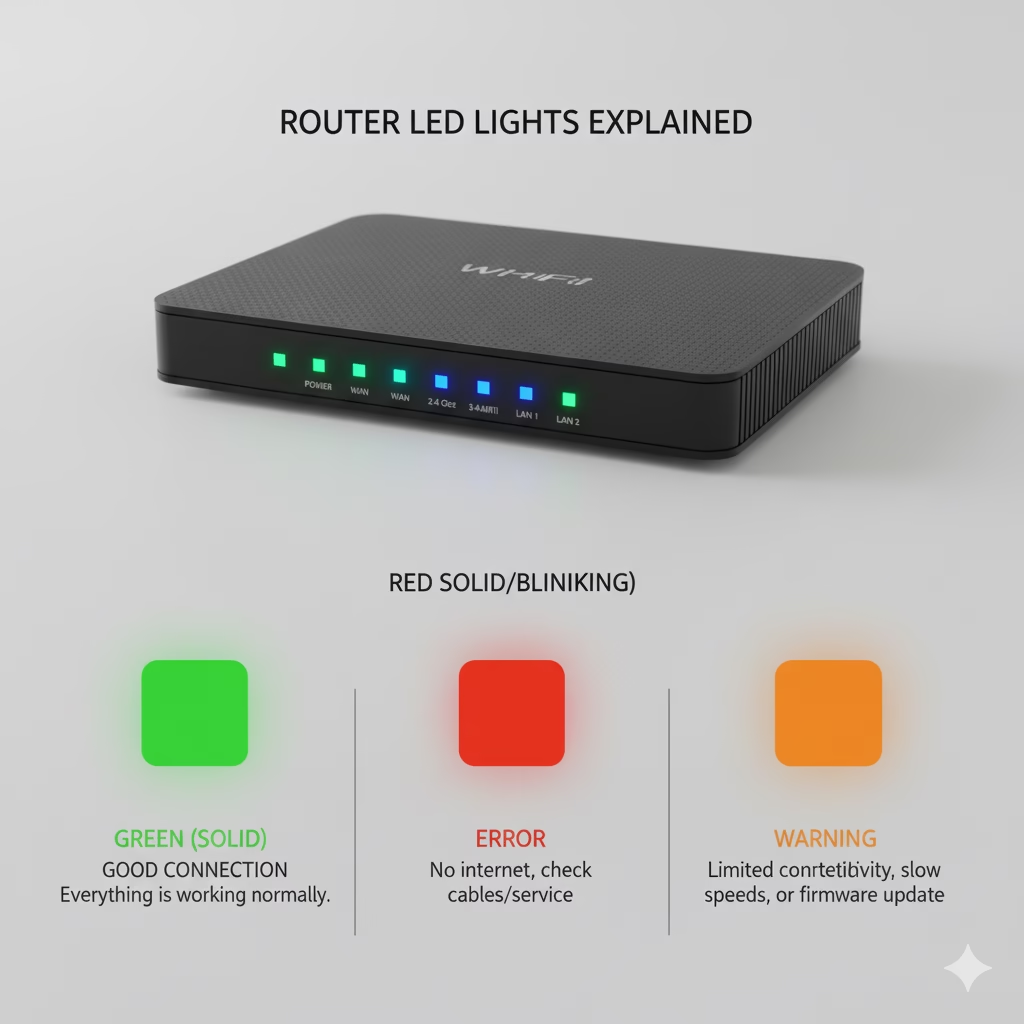

Introduction: What Do the Lights on a WiFi Router Mean?

Ever wondered why your WiFi router has so many blinking lights? Those tiny LEDs aren’t just decoration — they tell you what’s happening inside your network.
Understanding the lights on your WiFi router helps you fix slow internet, dropped connections, or complete outages — often without calling your service provider.
Let’s decode what those mysterious router lights really mean.
1. Power Light: Is Your Router Alive?
The power light shows whether your router is turned on and working properly.
- 🟢 Solid Green/White: Router powered on and operating normally.
- 🔴 Red/Amber: Startup issue or firmware error.
- ⚫ Off: No power supply — check the adapter or socket.
🧰 Quick Fix:
Unplug your router for 30 seconds and restart. If the red light persists, update firmware or contact support.
📦 Recommended Power Backup:
👉 TP-Link Smart UPS for Routers on Amazon

2. Internet or WAN Light: Your Gateway to the World
This light indicates your connection to the internet.
- 🟢 Solid Green: Internet active.
- 🟡 Blinking: Data transfer in progress.
- 🔴 Solid Red: No internet access.
- ⚫ Off: WAN cable not connected.
🧰 Fix It:
Ensure your modem cable (usually blue/yellow) is securely connected to the router’s WAN port.
📦 Recommended Ethernet Cable:
👉 Cat 8 High-Speed LAN Cable (Amazon)
3. WiFi Light (2.4GHz / 5GHz): Wireless Signal Status
These lights show the activity of your wireless networks.
- 🟢 Solid: WiFi is ON.
- 🟡 Blinking: Devices are connected and transferring data.
- ⚫ Off: WiFi disabled.
🧰 Fix It:
Log into your router’s admin panel and ensure both 2.4GHz and 5GHz are enabled.
📦 Recommended Dual-Band Router:
👉 TP-Link Archer AX21 Dual Band WiFi 6 Router (Amazon)
4. LAN (Ethernet) Lights: Wired Devices Connection
These lights indicate wired connections between your router and devices like PCs, TVs, or gaming consoles.
- 🟢 Solid/Blinking: Device connected.
- ⚫ Off: No connection on that port.
🧰 Fix It:
Try another Ethernet port or replace the LAN cable if the light stays off.
5. WPS Light: Easy WiFi Connect
The WPS light indicates your router is trying to connect a device without needing a password.
- 🟢 Blinking: Connecting.
- 🟢 Solid: Successfully connected.
- ⚫ Off: Inactive.
⚠️ Security Tip: Disable WPS after connecting — it can expose your WiFi to hackers.
6. DSL or Broadband Light (for DSL Routers)
For DSL internet users, this light shows the modem’s link to your ISP.
- 🟢 Solid: DSL connected.
- 🟡 Blinking: Connecting.
- ⚫ Off: No signal.
🧰 Fix It:
Check your telephone line or splitter. If the issue continues, contact your ISP.
7. USB Light (Optional)
Some routers have USB ports for drives or printers.
- 🟢 Solid: USB device connected.
- ⚫ Off: No USB device.
Common Router Light Problems and Fixes
| Issue | Light Indicator | Fix |
|---|---|---|
| No Internet | Red WAN light | Restart modem and router |
| WiFi Off | WiFi light off | Enable WiFi in settings |
| No Power | Power light off | Check cable/power socket |
| Ethernet not working | LAN light off | Try another cable or port |
| Slow speed | WAN blinking constantly | Check for interference or firmware update |
When to Contact Your ISP
If your router lights remain red or off even after troubleshooting:
- Internet/WAN light stays red for 10+ minutes.
- All devices lose connection.
- The router doesn’t respond after reset.
Your ISP may be facing an outage or line issue.
FAQs: Lights on WiFi Router Explained
1. Why is my WiFi router blinking red?
A red light usually means there’s no internet connection. Check your cables or restart the router and modem.
2. Why does my router keep blinking even when I’m not using the internet?
Routers constantly exchange background data like updates and syncs — this is normal.
3. Can I turn off the router lights?
Yes, most routers allow you to dim or disable LED lights through the admin settings.
4. What does the WPS button do?
WPS allows quick device pairing without entering a password. Turn it off after use for better security.
5. Why are there two WiFi lights (2.4GHz and 5GHz)?
They represent two frequency bands. 2.4GHz covers longer distance but slower speeds, while 5GHz is faster but has shorter range.
6. Should I buy a new router if my lights keep showing errors?
If firmware updates and resets don’t fix issues, it might be time to upgrade.
👉 Check the Best-Selling WiFi Routers on Amazon
Conclusion: Let the Lights Guide You
The lights on your WiFi router are like a live health report of your home network.
By understanding what they mean, you can troubleshoot faster, improve performance, and avoid unnecessary tech calls.
So the next time your internet drops, don’t panic — just check the lights, and let your router do the talking.