


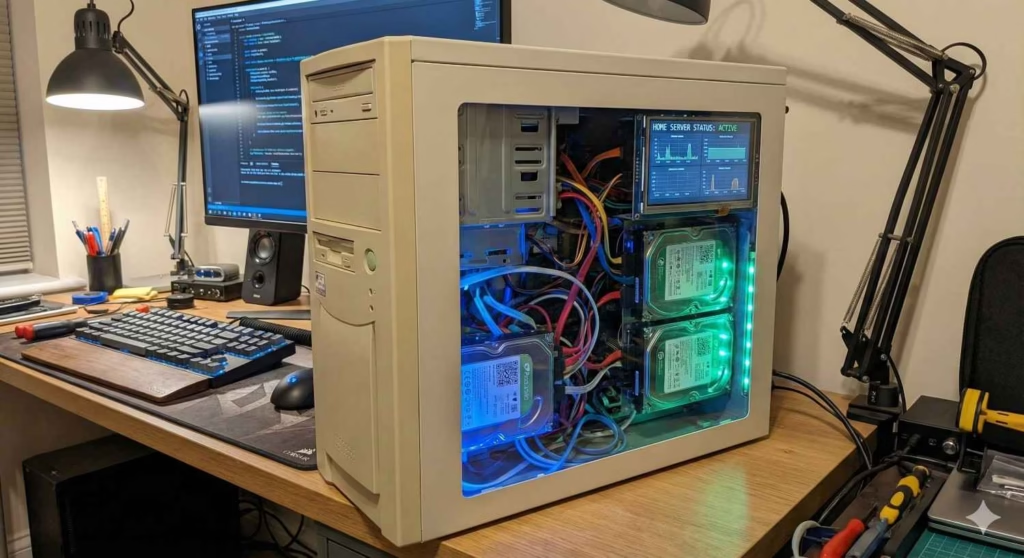
🖥️ Turn Old Windows PC Into NAS: The Ultimate 2025 Guide (Full Review)
Buying a dedicated NAS like Synology or QNAP is convenient—but also expensive. A modern NAS can cost $300 to $900, and that’s before adding hard drives. The good news? If you have an old Windows PC lying around, you can turn it into a full-featured, high-performance home NAS for almost zero cost.
This detailed and easy-English guide will walk you through everything you need to know: the benefits, drawbacks, required hardware, best software options, comparison with real NAS devices, and expert tips to get the best performance from your DIY home server.
Whether you’re planning to store family photos, host media via Plex, back up your devices, or create your own private cloud — this guide covers it all.

⭐ Why Convert an Old Windows PC Into a NAS?
Most people upgrade their PCs every few years, leaving perfectly functional machines unused. Instead of letting that hardware collect dust, it can be transformed into a:
- Centralized storage hub
- Secure personal cloud
- Media streaming server
- CCTV backup station
- File sharing system for home or office
- Backup server for laptops and phones
A dedicated commercial NAS is great, but a repurposed PC is:
- More powerful
- More customizable
- Much cheaper
This makes the DIY route extremely attractive in 2025.
⚙️ What You Need to Turn Old Windows PC Into NAS

Here’s the minimum recommended setup:
✔ Hardware Requirements
- Old Windows PC (Intel i3 or above recommended)
- 8GB RAM (16GB ideal for ZFS)
- Two or more storage drives (HDDs or SSDs)
- Gigabit Ethernet port
- USB flash drive (8GB+) for installation
✔ Recommended Upgrade Add-Ons
🔧 NAS-Grade Hard Drive (Seagate IronWolf 4TB)
- ⚡ Budget SSD for OS (Crucial BX500 240GB)
- 🔌 Efficient PSU for Home Servers (EVGA 500 W1)
- 🌐 Gigabit Network Switch (TP-Link TL-SG105)
🔧 Best Software to Convert Old Windows PC Into NAS (Ranked)
| Software | Best For | Price | Difficulty |
|---|---|---|---|
| TrueNAS Core | Security, ZFS RAID, enterprise-grade features | Free | Medium |
| Unraid | Plex, Docker, VMs | Paid | Easy |
| OpenMediaVault | Beginners | Free | Easy |
| Windows Storage Spaces | Quick setup | Free | Easy |
👉 TrueNAS Core is the top choice for stability, data protection, and RAID.
🔧 Step-by-Step: How to Turn Old Windows PC Into NAS (Simple Guide)
1. Download TrueNAS Core
Visit the official TrueNAS website and download the ISO file.
2. Create a Bootable USB
Use Rufus or BalenaEtcher to write the ISO to your USB stick.
3. Boot From USB & Install TrueNAS
Select your SSD as the installation drive.
4. Create Storage Pools
Add your HDDs into:
- RAID 1
- RAID 5
- RAID-Z1 (recommended)
5. Enable Network File Sharing
Turn on:
- SMB for Windows devices
- NFS for Linux
- AFP (if using legacy Macs)
6. Access Your NAS Dashboard
Simply open your web browser and type the NAS IP address.
7. Install Plugins & Apps
Add useful services like:
- Plex Media Server
- Nextcloud
- Transmission
- Resilio Sync
And your DIY NAS is ready!
🔍 Pros & Cons of Using Old Windows PC as NAS
⭐ Pros
✔ Extremely Cost-Effective
No need to buy a new Synology or QNAP.
✔ More Powerful Hardware
Old PCs often outperform NAS processors.
✔ Run More Apps
Perfect for Plex, Docker, backups, and cloud sync.
✔ Fully Customizable
Upgrade CPU, RAM, GPU, storage — anytime.
✔ Supports ZFS & RAID
Enterprise-level data protection.
❌ Cons
✘ Higher Power Consumption
PCs consume more power than dedicated NAS boxes.
✘ Larger & Louder
Not as compact as Synology/QNAP.
✘ Requires Technical Setup
Learning curve for beginners.
✘ No official warranty or vendor support
DIY means self-support.
📊 Comparison Table: DIY NAS vs Windows PC vs Synology/QNAP
| Feature | DIY NAS (Old PC) | Old PC Normal Mode | Synology/QNAP |
|---|---|---|---|
| RAID Support | ✔ Yes | ❌ No | ✔ Yes |
| OS Stability | High (TrueNAS) | Medium | High |
| Power Usage | High | High | Low |
| App Ecosystem | Excellent | Limited | Excellent |
| Cost | Very Low | Free | High |
| Media Server | Excellent | Medium | Excellent |
| Security | Very Strong | Weak | Strong |
| Ease of Use | Medium | Easy | Very Easy |
🆚 What’s Improved Compared to Your Old Windows Setup?
A NAS OS gives you:
🔼 Better File Protection
Thanks to ZFS, snapshots, and checksums.
🔼 Better Storage Management
RAID configurations ensure redundancy.
🔼 More Stability for File Sharing
Unlike Windows shares, NAS shares won’t disconnect.
🔼 More Apps & Automation
Backup tools, cloud sync, Plex, Docker containers, etc.
📌 When a DIY NAS Is the Right Choice
Choose DIY NAS if you want:
- More performance per dollar
- Customization
- Free software
- A Plex or media server
- A CCTV storage hub
- A personal cloud solution
Avoid DIY NAS if you prefer:
- Quiet operation
- Low energy usage
- Plug-and-play simplicity
🛒 Recommended Amazon Gear for DIY NAS Builds
⭐ Best Drives for NAS
⚡ SSD for OS
🔌 Low Power PSU
🌐 Network Switch
🎯 Final Verdict: Should You Turn an Old PC Into NAS?
If you want maximum storage power for minimum cost, the answer is a clear YES.
A converted PC gives you:
- More performance
- More storage
- More flexibility
- More apps
- Zero software cost
The only drawbacks are noise and power usage. For many users, that trade-off is worth the massive savings.
🎯 FAQs
1. Can I really turn any old Windows PC into a NAS?
Yes. Most old PCs with at least an Intel i3 processor, 8GB RAM, and working storage drives can be repurposed into a reliable NAS using TrueNAS, Unraid, or OpenMediaVault.
2. Is a DIY NAS as good as Synology or QNAP?
Functionally, yes. A DIY NAS can be even more powerful thanks to better hardware. However, commercial NAS systems are quieter, smaller, and use far less electricity.
3. Do I need Linux experience to set up TrueNAS?
No. TrueNAS uses a browser-based interface. Even beginners can set it up by following a simple step-by-step guide.
4. Is it safe to store important data on a DIY NAS?
Yes—if you configure RAID, snapshots, and ZFS (TrueNAS). This provides enterprise-level data protection. Always keep external backups of critical files.
5. How much does it cost to convert an old PC into a NAS?
If you already have the PC, you can build a NAS for free using existing drives. Optional upgrades like NAS-grade hard drives will cost extra.
6. Can I run Plex or media streaming on a DIY NAS?
Absolutely. Old PCs often outperform Synology CPUs, making them ideal for Plex 1080p or 4K transcoding.
7. Does a DIY NAS consume a lot of power?
Yes, more than commercial NAS units. Old PCs typically consume between 60–150W, whereas Synology/QNAP use 20–35W.
8. Can I access my DIY NAS remotely?
Yes. You can use VPN, port forwarding, or apps like Nextcloud and TrueNAS Cloud Sync for secure remote access.
9. Can I add more storage later?
Yes. DIY NAS systems are entirely flexible—you can add new drives, expand RAID arrays, or upgrade SSDs anytime.
10. Which is the best free NAS OS for beginners?
OpenMediaVault is easiest for beginners, while TrueNAS Core is best for users who want performance, ZFS, and advanced features.